Skip to content

What UniConn does

Each feature, what it needs, and its limits, as tested. Status words come from the app’s own test notes.

Shared clipboard

Works today

A copy on one device lands on the other device's clipboard as it arrives. On the laptop every copy goes by itself. Android does not let any app read the clipboard in the background, so on the phone a copy goes with one tap: Share on Android's copy pop-up, or UniConn in the text-selection menu, without UniConn coming to the front. While UniConn is open, copies go by themselves. Images travel as PNGs.

Needs

  • The Clipboard permission between the two devices (on from the start)
  • A Linux or Windows 11 laptop; both tested with text and images, each way

Limits

  • Images up to 16 MiB; larger ones are scaled to 4,096 pixels on the longer side
  • An ordinary entry expires after two hours; one marked sensitive after one minute, and it is never stored
  • The phone can turn off applying copies from other devices
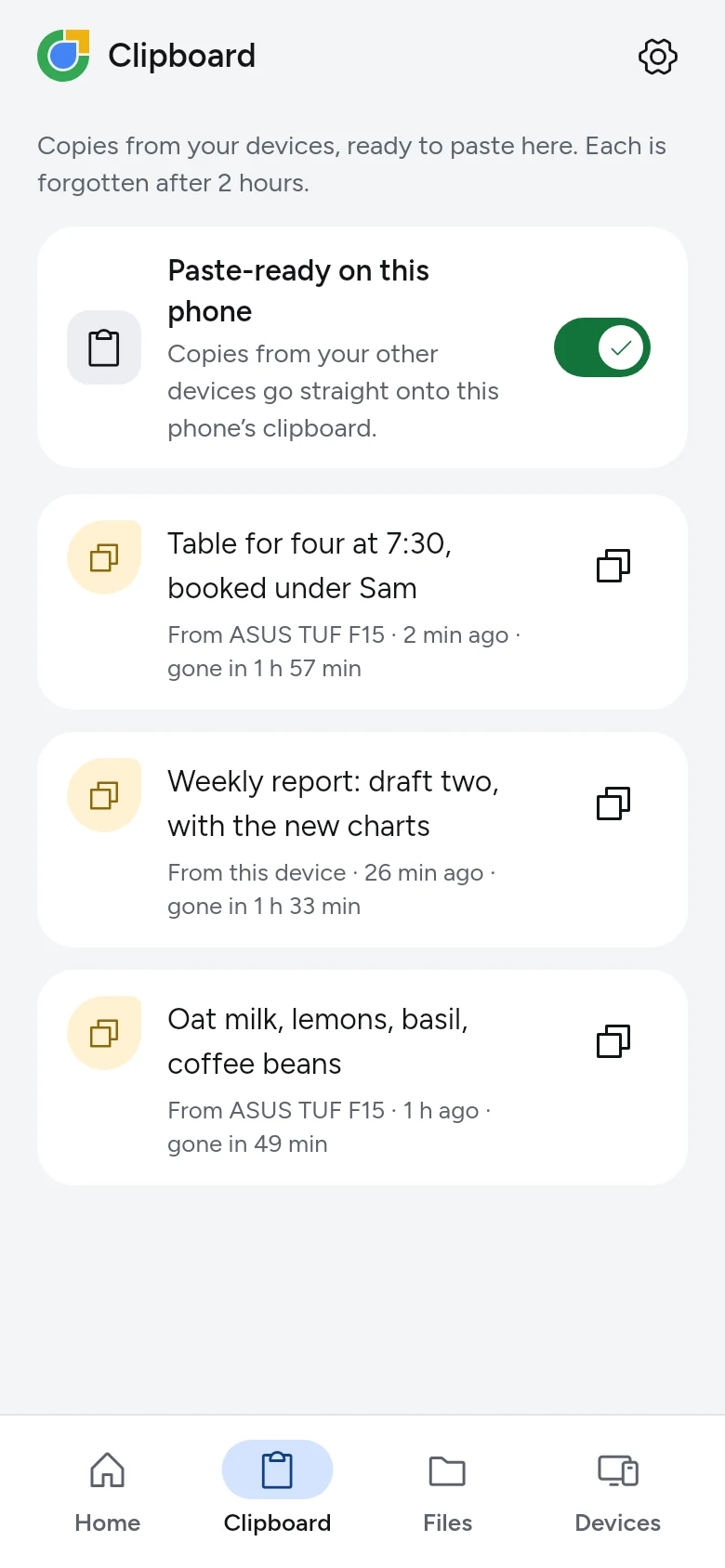
The phone's Clipboard: copies from both devices, ready to paste, each with when it goes.

Files, both ways

Works today

Any app's Share offers Send with UniConn, and each paired device appears in the share sheet as a direct target. A file is offered, never pushed: the receiving device decides whether to take it and where it goes, then pulls it in 1 MiB chunks, each checked with BLAKE3. A transfer resumes after an interruption, and a file only takes its real name once every chunk checks out.

Needs

  • Files from this device, allowed by the device that sends (on from the start)
  • A Linux or Windows 11 laptop; both tested, each way

Limits

  • Files move at full speed on the same Wi-Fi or a direct connection; through UniConn's relay, files up to 8 MB, and larger ones wait for a better path
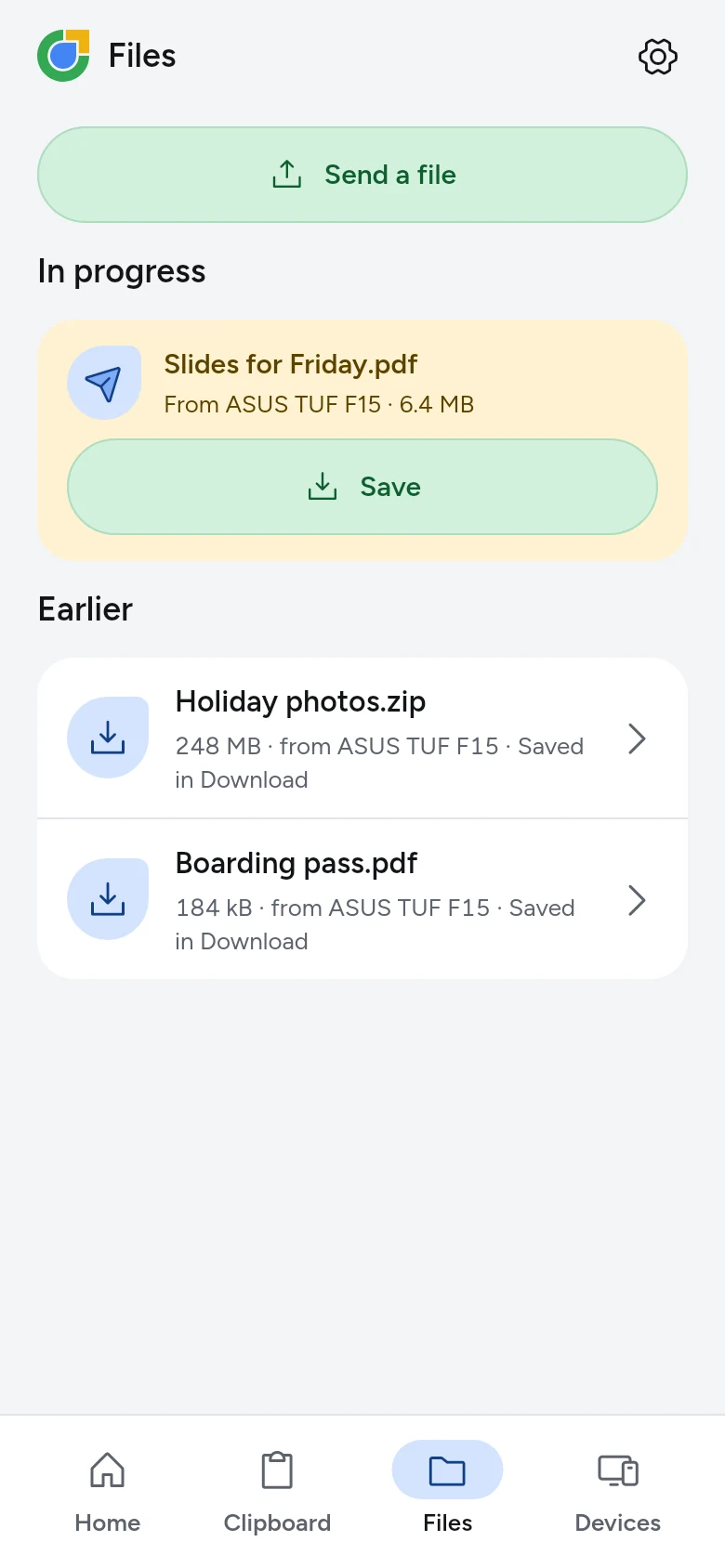
The phone's Files: a file to save from the laptop with Save, and earlier files saved in Download.

Phone as webcam

Works today

The phone's camera becomes UniConn Camera on the laptop, and any application there, a browser meeting, Zoom, OBS, can pick it as it would a USB camera. The phone is asked every time the laptop wants its camera, and shows who is using it, with Stop. Switch between the front and back cameras from either device, and turn on the torch from the phone.

Measured

On the Linux laptop, live in a Google Meet call: 30 fps at 5.6 Mbit/s with no dropped frames, about 140 ms (p50) and 160 ms (p95) from the camera to the application, and eleven minutes with the phone's screen off without a dropped frame.

Needs

  • Use this camera, allowed by the phone
  • A one-time camera set-up on the laptop, which the installer makes and which asks once for your password on Linux or an administrator on Windows; if it was skipped, Set up camera in UniConn makes it
  • On Windows, Windows 11; earlier versions have no virtual cameras
  • Both devices on the same network

Limits

  • 1280 × 720 at 30 frames a second
  • Nothing is recorded
  • Works on Windows, but not yet measured there
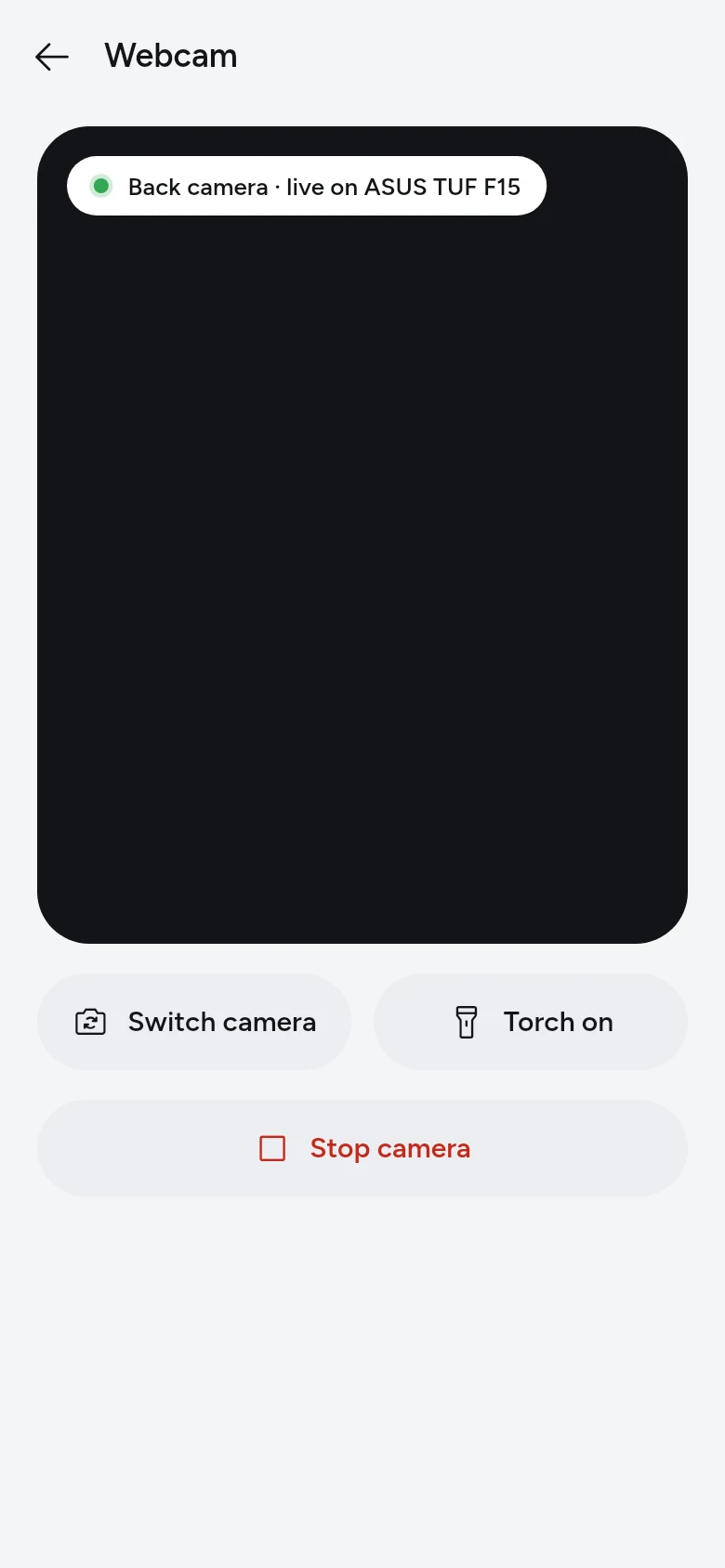
The phone as the laptop's webcam: the back camera live, with Switch camera, Torch on and Stop camera.

Phone screen on the laptop

Works, still being tested

The phone's screen opens in its own window on the laptop. Click to tap, drag to swipe, scroll with the wheel, type into the focused field, right-click for Back and middle-click for Home. Ctrl+V types the laptop's clipboard, Ctrl+Shift+S saves a screenshot, and files dropped on the window go to the phone. Every time, the phone asks its owner, with a separate choice for control, and then Android asks its own question.

Needs

  • See this screen, and Control this screen to drive it, allowed by the phone
  • Screen control switched on in Accessibility for the session; UniConn opens the guide and switches it off again after, so banking and UPI apps keep working
  • Both devices on the same network
  • A Linux or Windows 11 laptop; on Windows the picture, control, dropped files and screenshots are tested

Limits

  • Up to 1920 pixels on the long side at 60 frames a second
  • Typing needs Android 13 or later; control never works while the phone is locked
  • Latency and long-run tests are still being run
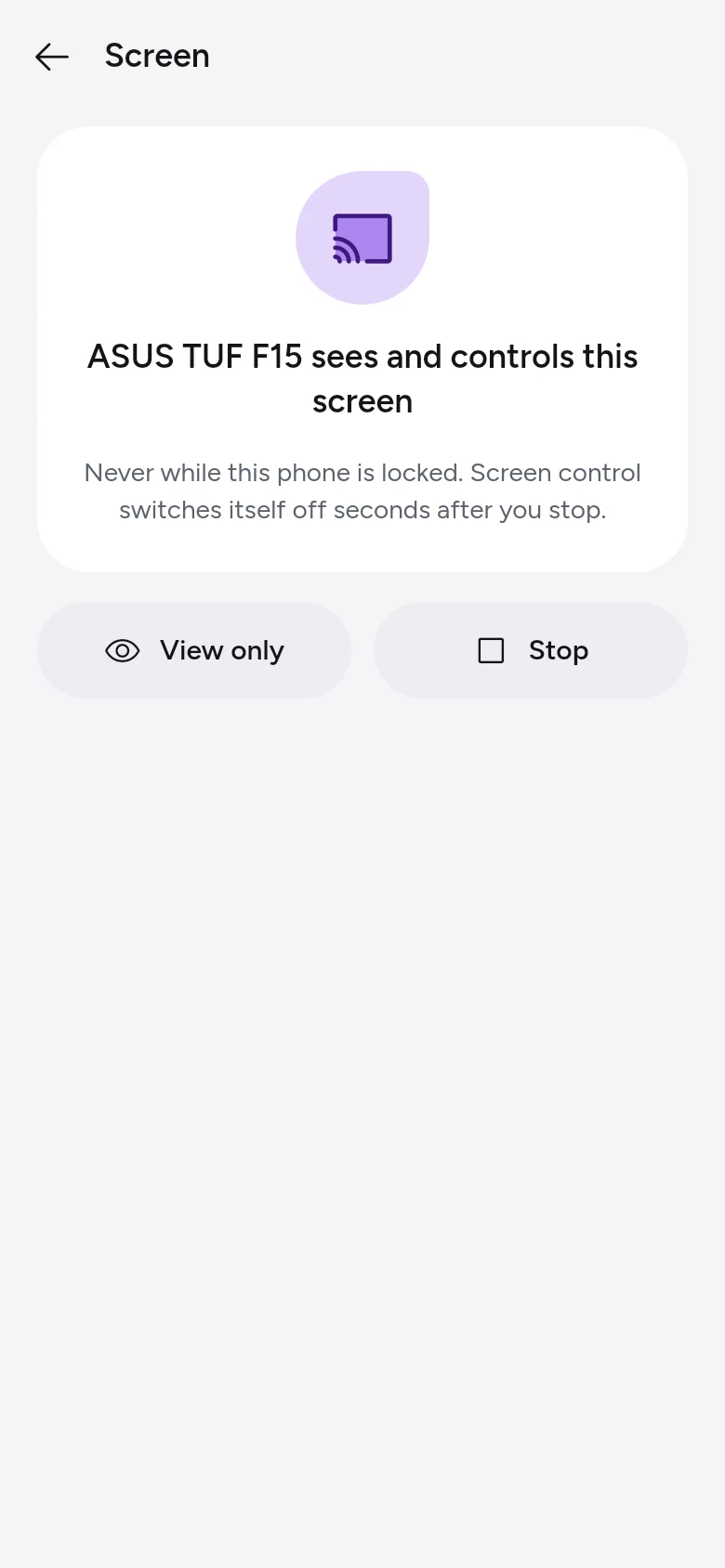
The phone's screen shared: the laptop sees and controls it, with View only and Stop.

Each other's speaker

Works today

The phone plays the laptop's audio over UniConn's own encrypted connection, and the laptop falls silent while it does. The other way, the laptop becomes an ordinary Bluetooth speaker for the phone, which works with any Android app, streaming services included; UniConn pairs it once with the code compared, then connects and disconnects it.

Measured

On the Linux laptop, frame arrival jitter of 10 ms at p99 on its own, and 20.4 ms beside a 256 MiB file transfer.

Needs

  • Play sound here, allowed by the device that plays
  • Nearby devices on the phone for the Bluetooth pairing

Limits

  • One direction at a time
  • Local network only for now
  • On Windows, the phone's sound did not play through the one laptop tested, which looks like its Bluetooth adapter or driver; pairing works
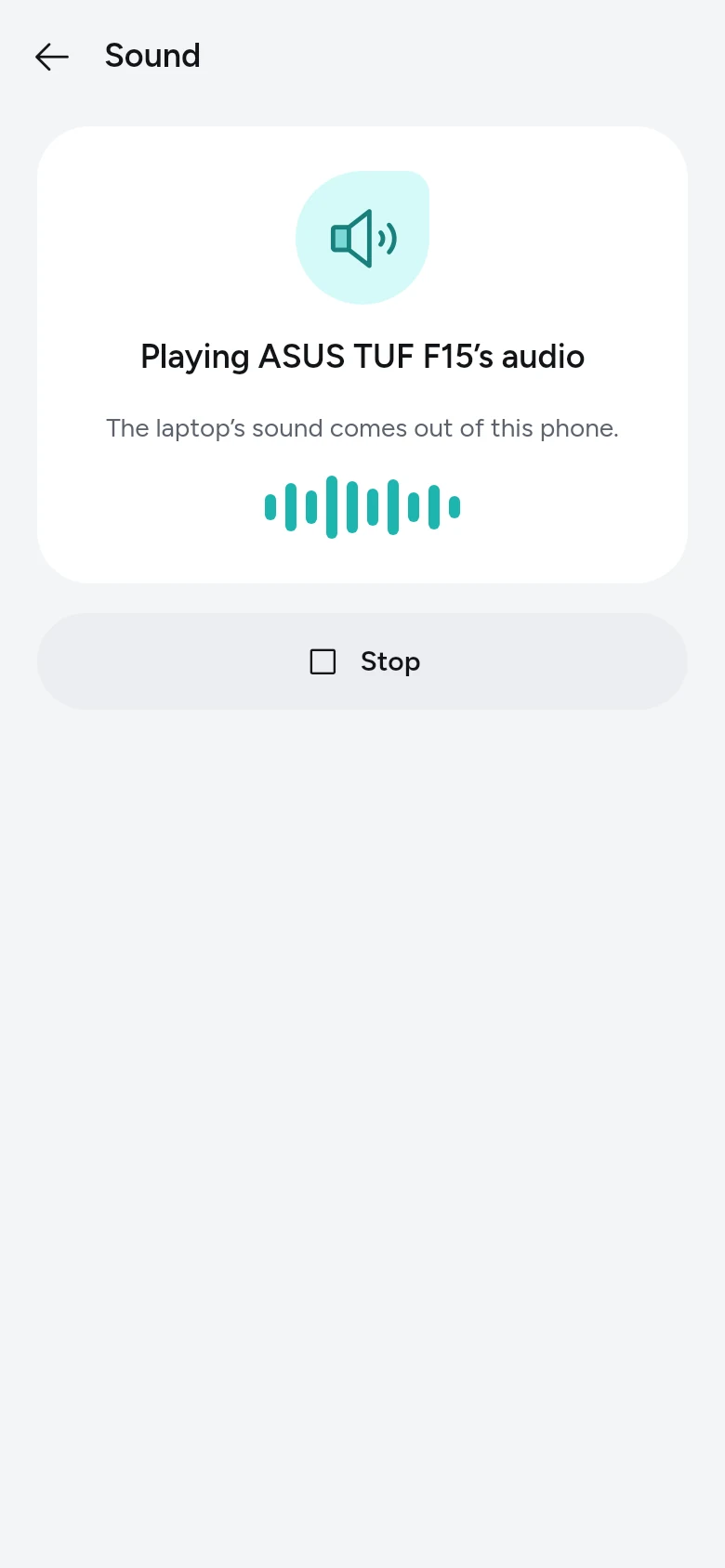
The phone playing the laptop's sound, with its level and Stop.

Phone as microphone

Works today

The phone's microphone becomes UniConn Microphone on the laptop, and any application there, a browser meeting, Zoom, Discord, OBS, hears it as it would a headset. While it runs it is the laptop's default microphone, and a call already running moves to it; the laptop's own microphone comes back when it stops. The phone records with Android's echo cancelling and noise suppression, so it can be the laptop's speaker in the same call. The phone is asked every time, and shows a notification with Stop while it listens.

Measured

On the Linux laptop: the phone asked 2.4 s after the laptop did, and a sound played in the room reached the laptop's applications through the phone about 290 ms later. It was used in a Google Meet call.

Needs

  • Use this microphone, allowed by the phone
  • A Linux laptop; nothing to set up (tested with PulseAudio)
  • Both devices on the same network

Limits

  • Linux only for now; Windows needs an audio driver of its own
  • 48 kHz mono, uncompressed
  • Nothing is recorded
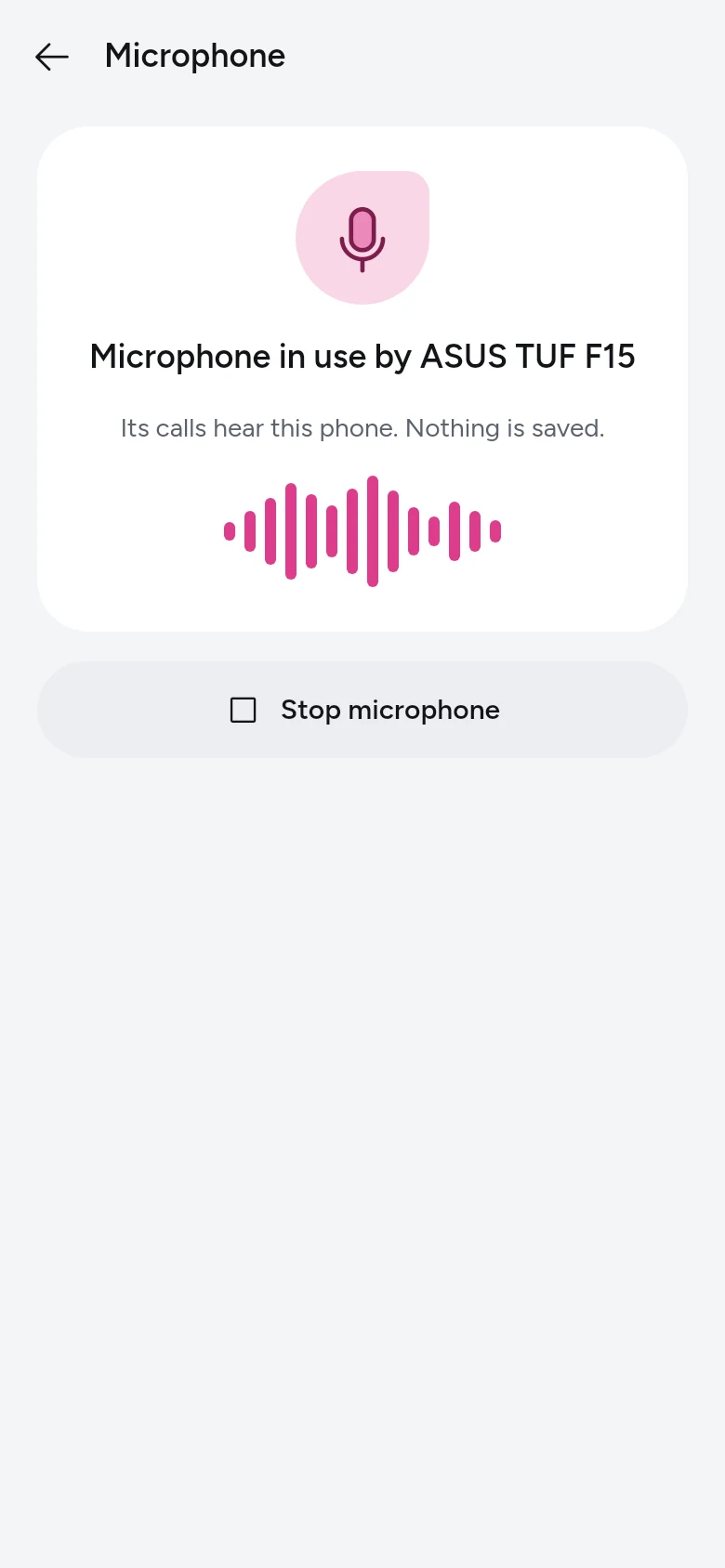
The phone as the laptop's microphone: in use by the laptop, its level, and Stop microphone.

Terminal to your laptop

Works today

Open a shell on a paired laptop over your own Tailscale network. The server is Tailscale's SSH, so there is no sshd to configure and no key to manage; Tailscale's access policy decides who may open a shell. Output stays raw bytes end to end, and commands and output are never logged.

Needs

  • Tailscale on both devices, with SSH switched on on the laptop
  • A Linux laptop to open the shell on

Limits

  • The phone is a client only; it hosts no terminal
  • A Windows laptop cannot host one, as Tailscale's SSH server runs on Linux and macOS only; it can still open a terminal on a Linux laptop
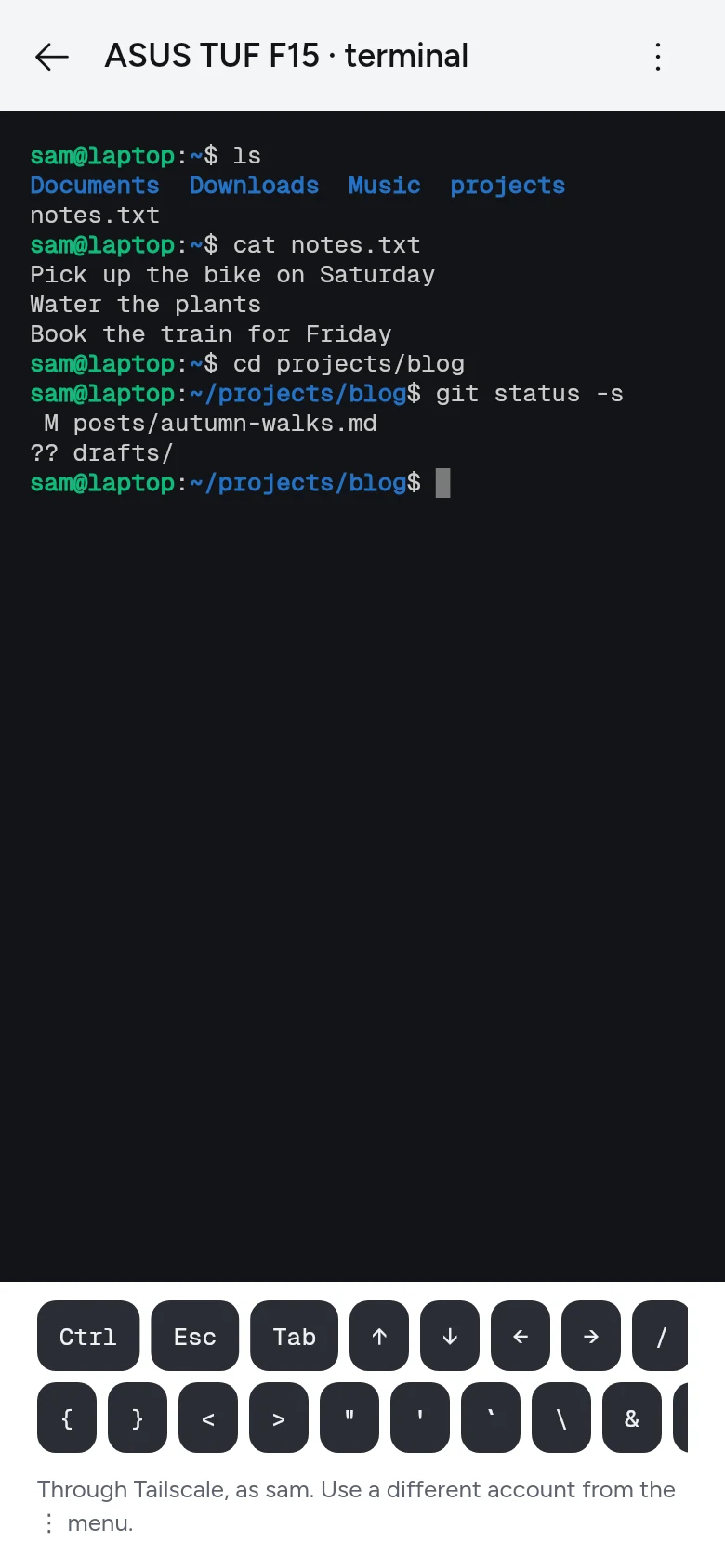
A terminal on the laptop from the phone, with a key bar for Ctrl, Esc, Tab and arrows.

The phone's hotspot

Works today

When the laptop has no internet it asks your phone — over their own link, or by a short Bluetooth signal that reaches the phone with UniConn closed. The phone shows who is asking; one tap opens Android's hotspot setting, you switch it on, and the laptop joins the one network you linked to that phone. While it is on, the phone shows what the laptop has used, and the laptop's desktop says when it asks, joins and leaves.

Needs

  • Ask for this phone's hotspot, allowed by the phone (on from the start)
  • A Linux laptop, and the one saved network linked to that phone

Limits

  • Android lets no app switch a hotspot on by itself, so that one tap stays
  • Not now holds the laptop's own requests for 30 minutes
  • The phone in Doze, and a real restart, are not yet tested
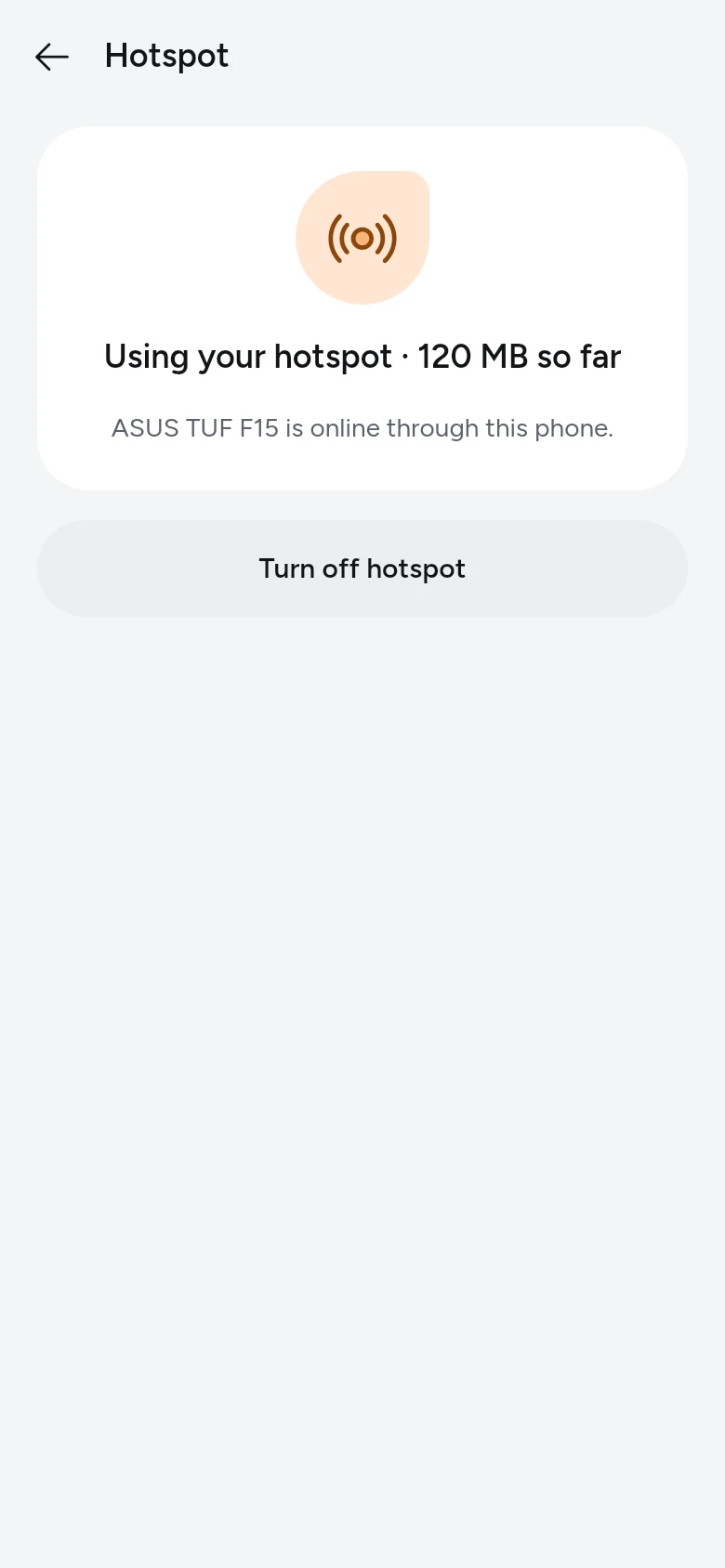
The laptop using the phone's hotspot: 120 MB so far, and Turn off hotspot.

Unlock the laptop with your phone

Works, still being tested

With the laptop locked, Unlock on its card — or in the quiet notification the phone shows while that laptop is locked — asks for your fingerprint or face once the phone hears the laptop close by over Bluetooth, and the laptop's signed-in session opens. You set it up once while the laptop is unlocked: the phone makes a key for that laptop inside its secure hardware, and the key can only ever be used behind your biometric. The phone says it worked only once the laptop has actually seen its session unlock.

Needs

  • Unlock this laptop, allowed by the laptop
  • A Linux laptop, or a Windows 11 laptop signed in with a local account whose password you store in UniConn once; and an Android 11 phone with a fingerprint or face enrolled
  • Both devices on the same local network

Limits

  • It opens a session you are already signed in to — never a first login, a disk, an administrator prompt, or anyone else's session
  • Every unlock needs its own biometric; nothing happens automatically when you are nearby
  • A VPN-only or routed path is refused; three bad attempts pause that phone for 15 minutes
  • Tested on Linux with X11 and on Windows 11 with a local account; the rest of its device test is still being worked through
The laptop's page on the phone while it is locked: the Unlock key and phone-approved unlock, set up.

Lock the laptop from your phone

Works today

Lock on the laptop's card, or the Lock tile in your phone's quick settings, locks the laptop's screen: within a second on the same Wi-Fi, and within seconds from anywhere else, through UniConn's relay when it has to. The laptop says which phone locked it, so a lock you did not make is never a mystery. It asks for no fingerprint: locking can only make the laptop safer, so nothing slows it down.

Measured

0.6 to 1 second on the same Wi-Fi; 7.6 seconds with the phone on mobile data.

Needs

  • Lock this laptop, allowed by the laptop; ticked when your devices join
  • A Linux laptop with a screen locker, or a Windows 11 laptop
  • Your devices signed in to the same UniConn account

Limits

  • It locks the screen; it never signs anyone out or turns the laptop off
  • At most one lock every 3 seconds, and 30 an hour, from one phone
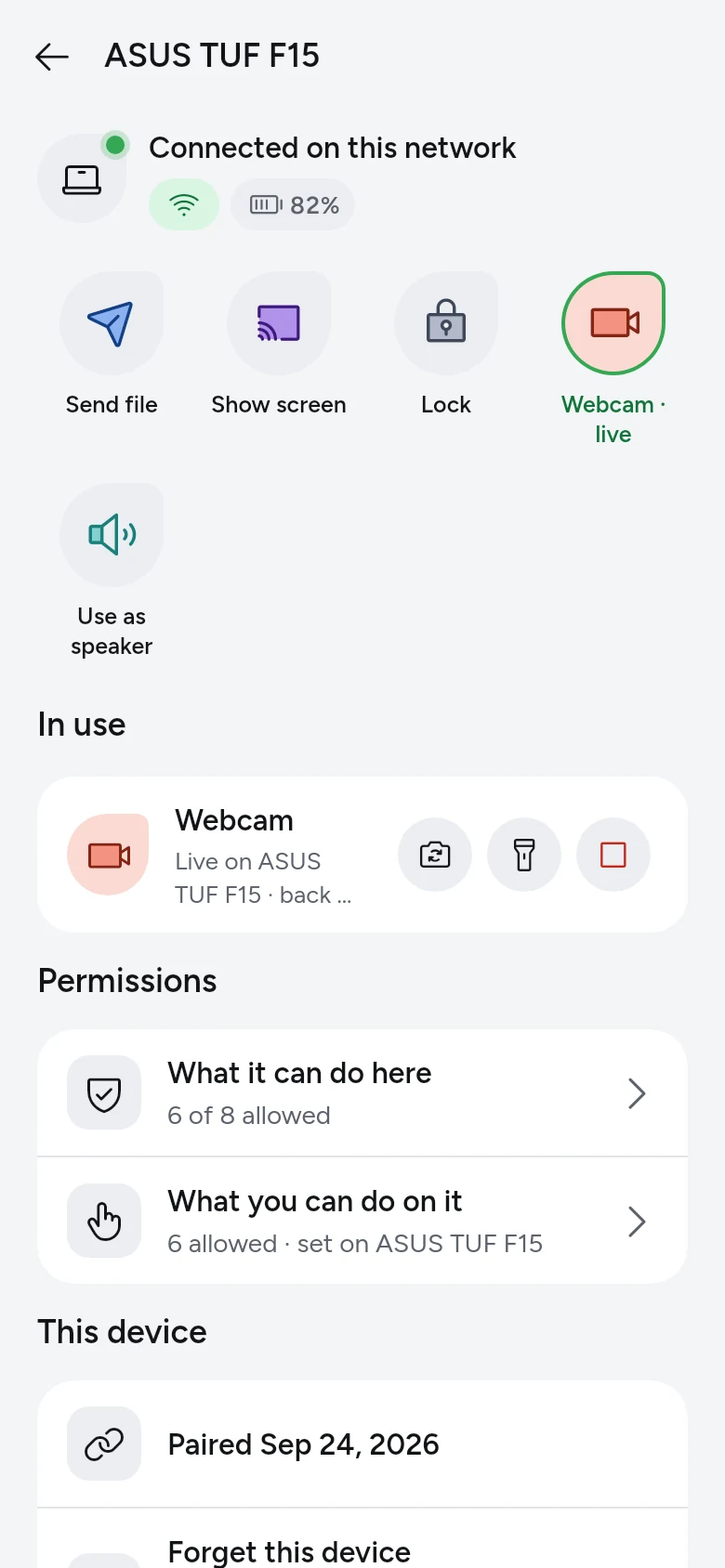
The laptop's page on the phone: its status, keys, what is in use, and what each device may do.

Claude Code and Codex on your phone

Works today

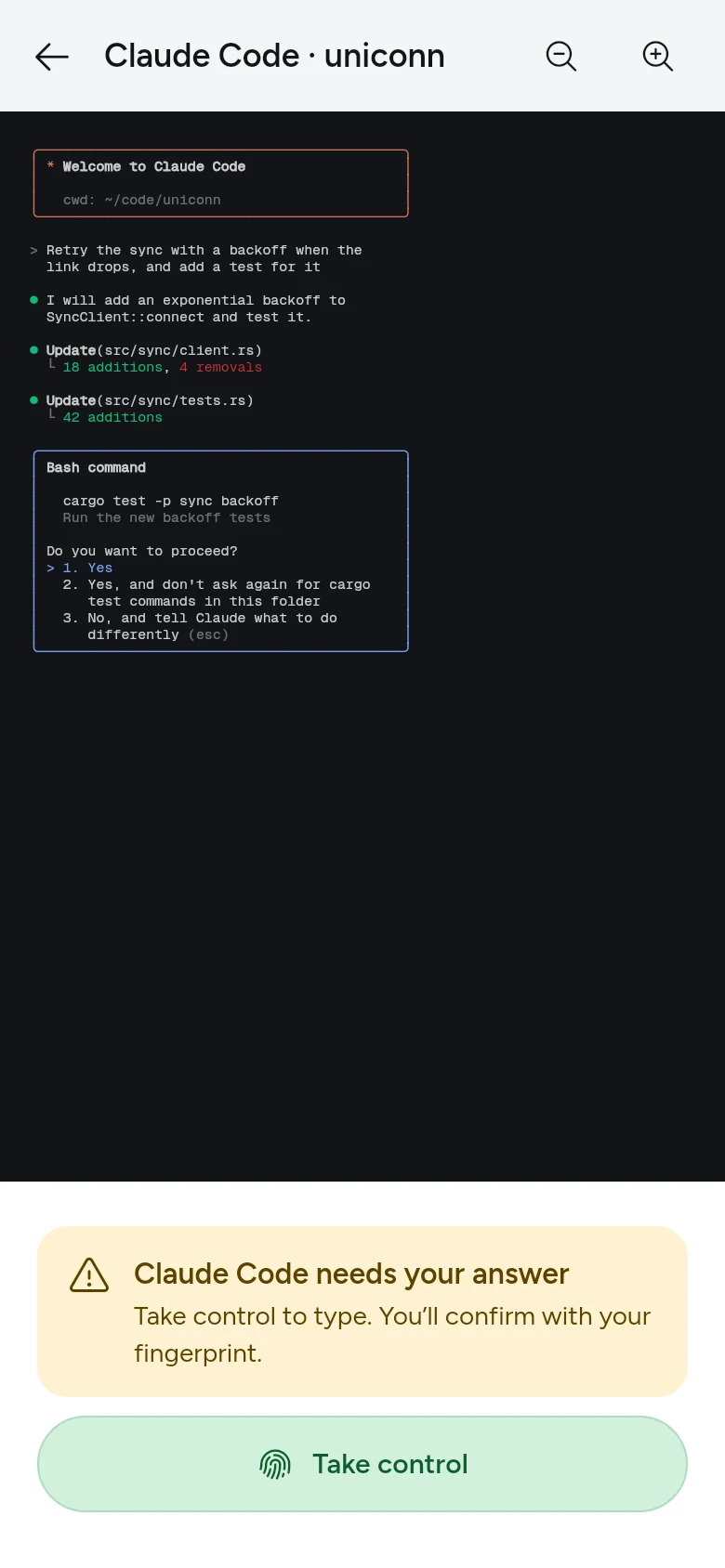
Type claude or codex in a terminal as you always do. The tool runs exactly as it did, and while it runs your phone lists the session, shows precisely what the terminal shows, and tells you when it needs you: a permission to grant, a question to answer. Take control with your fingerprint, then answer with the keys it asks for or send a prompt. If you are typing on the laptop at that moment, the phone's prompt waits until you finish your line instead of landing in the middle of it. At home it travels over your Wi-Fi; away from home, through UniConn's relay, encrypted end to end.

Measured

A permission request reached the phone as a notification within 8 seconds; a prompt from the phone on mobile data reached the laptop in about 1 second.

Needs

  • Coding sessions, allowed by the laptop; off until you allow it
  • A Linux laptop with Claude Code or Codex installed
  • A fingerprint or screen lock on the phone, to take control

Limits

  • Linux laptops only, for now
  • Taking control asks for your fingerprint at most every 30 minutes
  • Through the relay a long session reconnects every 15 minutes or 12 MB, and picks up exactly where it left off
  • Switched off, terminals run claude and codex exactly as before
A Claude Code session on the phone that needs an answer, with Take control.

Reach across the internet

Works today

On the same Wi-Fi your devices talk directly. Away from it, they connect directly across the internet when they can, and otherwise through UniConn's relay, which passes along records it cannot read. When the phone leaves the Wi-Fi, the two switch to the relay within seconds and back again when it returns, and each device's page says which way they are connected, live. Tailscale, for those who already use it, works too.

Needs

  • Your devices signed in to the same UniConn account

Limits

  • Needs Plus; on Free, devices connect on the same Wi-Fi only
  • Through the relay only small things travel: copies, notices and files up to 8 MB
  • The webcam, the screen, the speaker and the microphone need the same Wi-Fi or a direct connection; their keys say so while they cannot work
  • With Plus, 100,000 relayed connections a month and 500 a day; direct connections are not counted
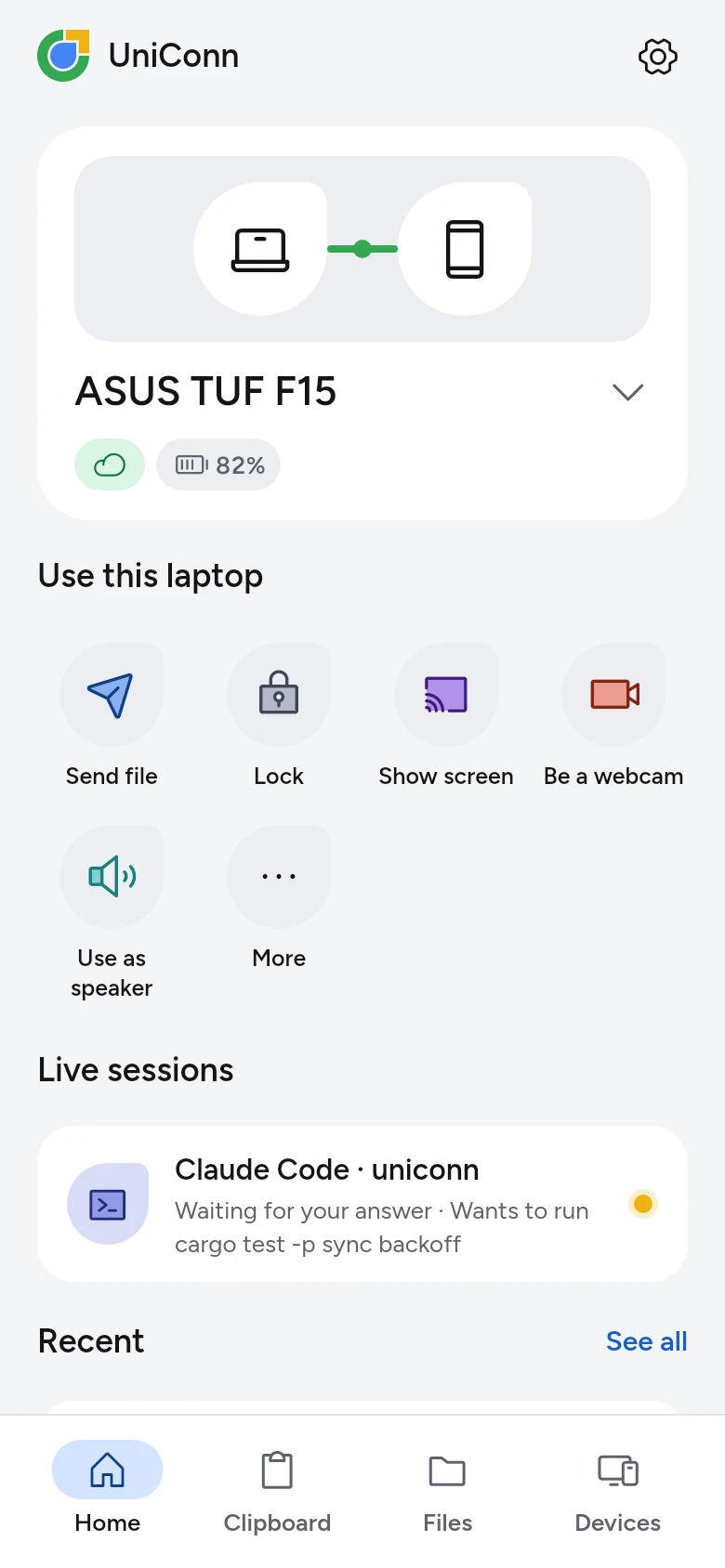
Home with the laptop reached over the internet: the cloud in place of Wi-Fi.

Widget and Quick Settings

Works today

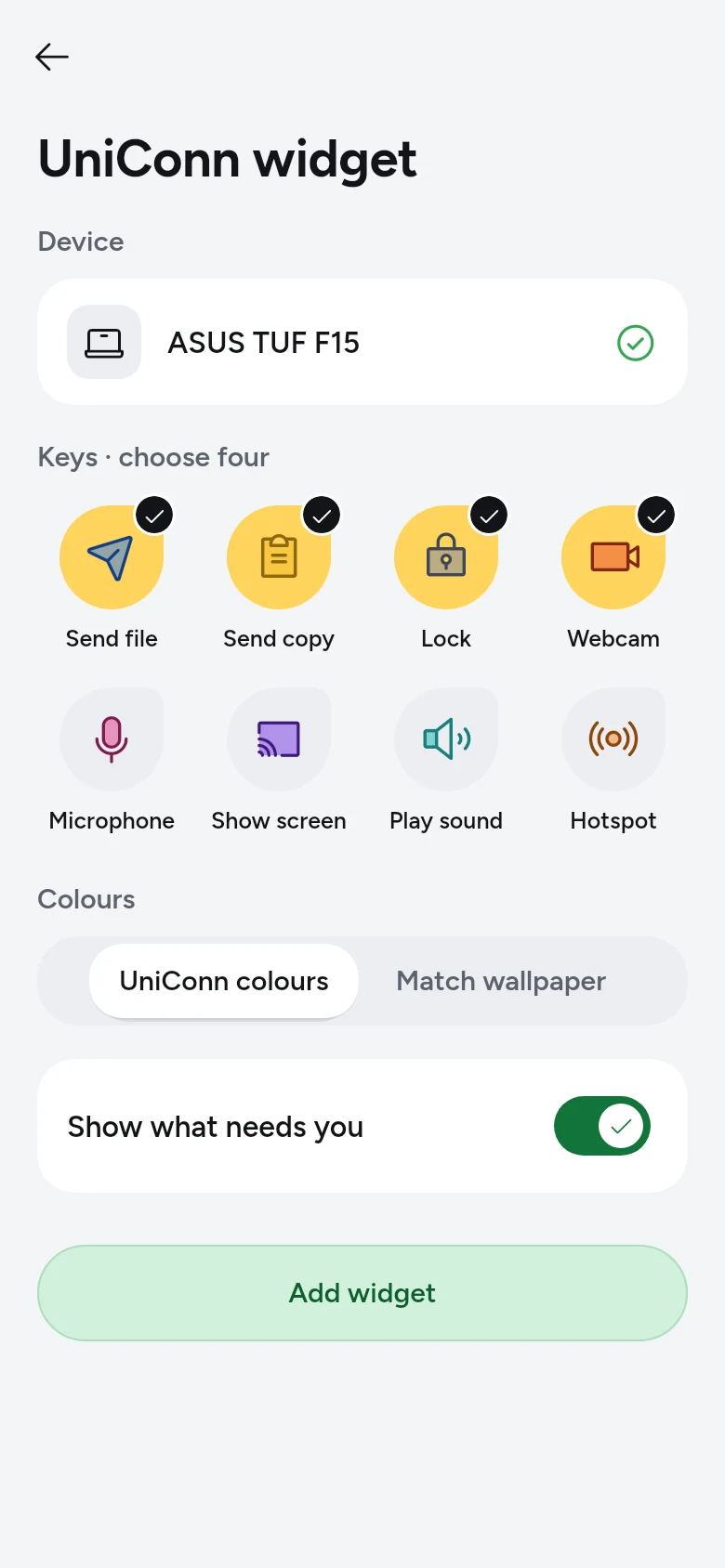
Add UniConn's widget to the phone's home screen and it shows your laptop as Home does: whether it is on the same Wi-Fi or over the internet, its battery, and a lock while it is locked, as icons. Below them sit four keys you choose: send a file or a copy, lock or unlock it, start the webcam, and more. It is updated within a second of anything changing, without polling. The Lock laptop tile in quick settings locks it from anywhere, even with UniConn closed.

Needs

  • Android's home screen, from 2×1 up to 4×3; the keys are chosen in Settings › Home-screen widget
  • A paired laptop, signed in to the same account

Limits

  • Nothing private is shown on the home screen: no copies, no file names
  • Unlock still asks for your fingerprint, every time
  • A key that cannot work right now says so instead of failing
The widget's settings: which device it shows, the four keys, its colours, and Add widget.

Answer from the notification

Works today

When the laptop asks for the phone's camera, microphone or screen, the phone shows a notification with Answer and Not now: Answer opens the question in UniConn, and Not now, or a swipe, turns it down at once and tells the laptop. A file sent to the phone shows its name and size with Save, which asks where it goes, and Not now. Files on their way show their progress with Cancel, then Received with Open.

Needs

  • Notifications allowed for UniConn on the phone

Limits

  • The lock screen shows only that something is asking, never what or from whom
  • Swiping a file away only hides it: it waits in Files until you save it or turn it down
  • After a no, the same laptop's camera, microphone or screen requests are held for 30 seconds
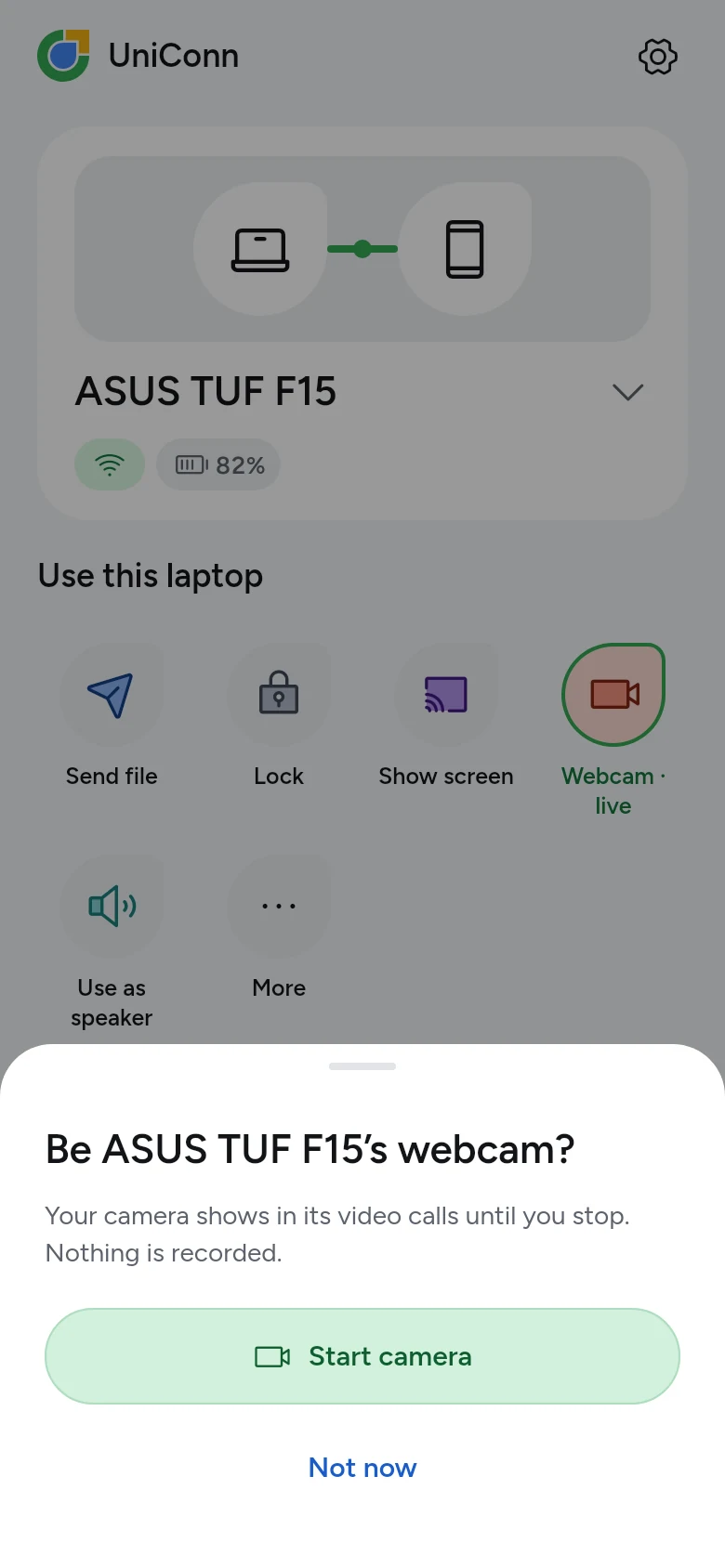
The laptop asks for the phone's camera: Start camera or Not now.

In use, one tap away

Works today

Whatever is running between your devices, the webcam, the microphone, the screen, sound or the hotspot, has a row under In use on Home and on that device's page, with its quick controls: switch camera for the webcam, the torch on the phone, and Stop for every one. Tap the row for its live page, with the details: the camera's own preview on the phone, the level, who is watching.

Needs

  • A session running: the webcam, microphone, screen, sound or hotspot

Limits

  • The webcam's preview is shown on the phone only; it is the same picture the laptop gets
The laptop's page on the phone: its status, keys, what is in use, and what each device may do.

Your devices, your call

Works today

Every device signs in to your UniConn account, and only devices on the same account connect. Sign in on a new one and a device you already have asks “Allow your phone to connect?” beside a code the new one shows too; one tap there, and a third device then joins the rest by itself. Lose one, and remove it from any other: it can never sign in to your account again.

Needs

  • Your Google account, to sign in with on each device

Limits

  • 2 devices on one account on Free, up to 10 with Plus
  • A device that has not checked in with UniConn for 7 days pauses, even on the same Wi-Fi, and asks you to sign in again
  • A joined device gets everything the other offers; the camera, the screen, control and unlock still ask each time they are used
  • Scanning a QR code still works in person, between devices on the same account
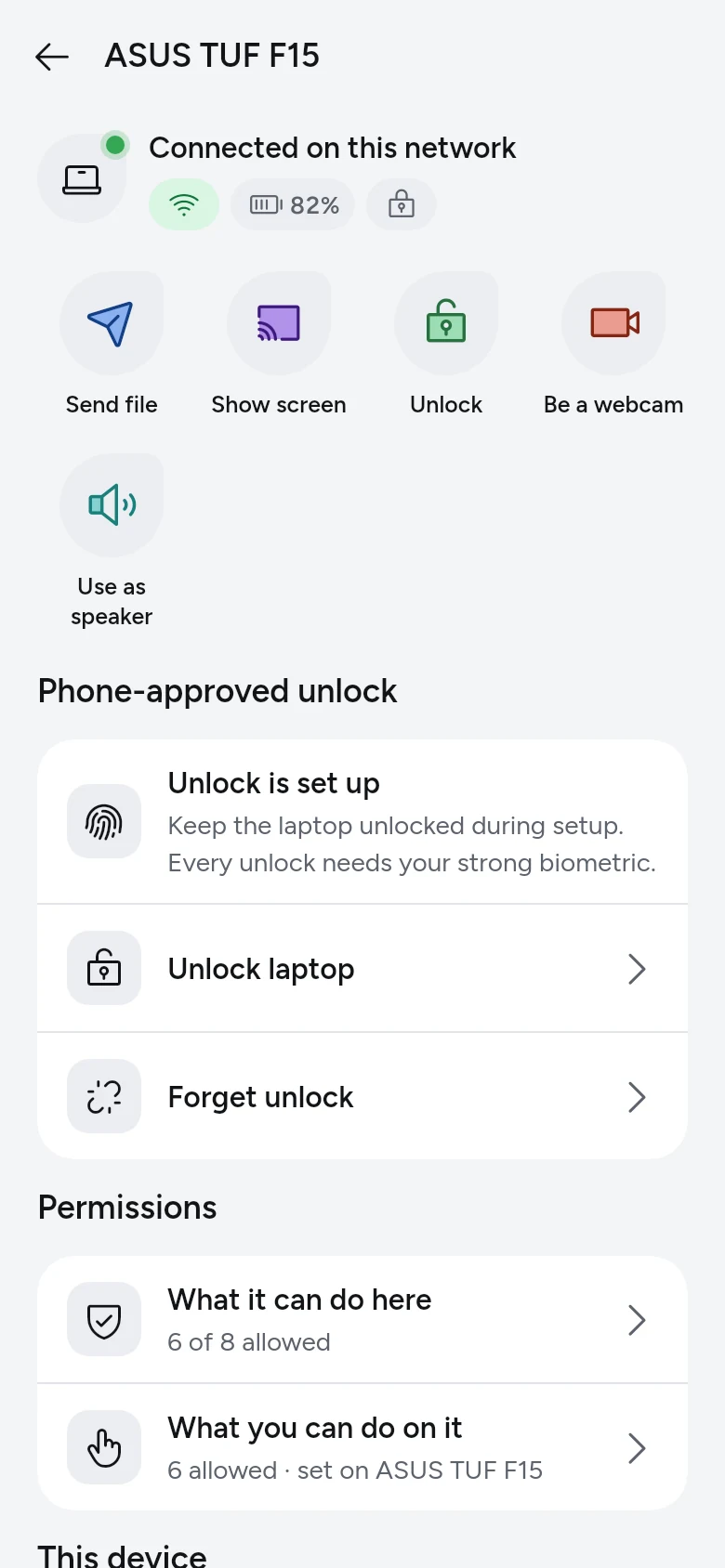
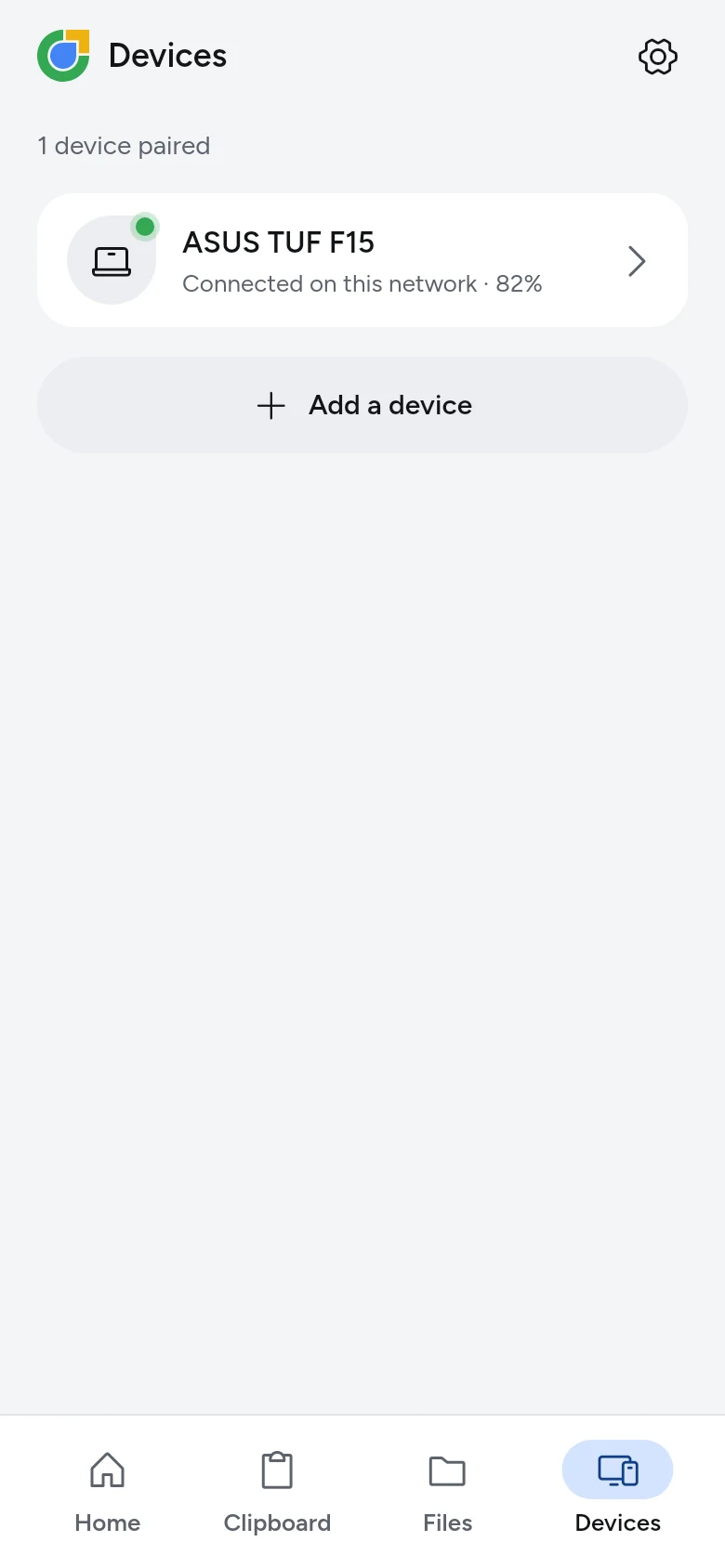
The phone's Devices: the laptop, connected on this network at 82%, and Add a device.

Not in this release

Direct messages and group chats are built but left out of the release. Unlocking the laptop with your phone is built and working, and is still being taken through its device test. The roadmap